
Developers: 15–30s App Store Video Guidelines, Specs and Fast Variants
Developer-first App Store video rules and visual-first checklist: 15–30s, under 500MB, H.264/ProRes. Includes a fast workflow to produce device-localized...
App Store app previews must run 15 to 30 seconds, stay under 500MB and show only genuine in-app footage. Because previews autoplay muted, your first three seconds have to communicate visually, with no reliance on sound. This guide covers the exact specifications, the creative rules that keep you out of review trouble, and a workflow for producing multiple compliant variants fast enough to test with Product Page Optimization.
TL;DR:
- App previews must be 15 to 30 seconds long, under 500MB, and show only actual in-app content to meet Apple’s technical and authenticity standards.
- Creating multiple device-specific and localized variants can be streamlined using automated workflows, enabling more effective testing and optimization.
- High-contrast, on-screen text and clear visual cues are essential for effective silent, autoplay previews, which must communicate benefits within the first three seconds.
- All footage must respect intellectual property rights, especially regarding music, trademarks, and third-party assets, to avoid rejection or legal issues.
- Using rapid prototyping tools like Instant-UGC allows teams to produce compliant preview variants in minutes, enhancing testing speed and market reach.
Table of Contents
- 1. Official technical specs quick reference
- 2. Creative best practices for autoplayed, muted previews
- 3. Submission and App Review checklist
- 4. Testing and optimization with Product Page Optimization and Custom Product Pages
- 5. Publisher production: fast, compliant preview variants
- 6. Accessibility considerations for app preview videos
- 7. Compliance with intellectual property rights and permissions for video content
- 8. What to prioritize with a single preview slot
- 9. Try Instant-UGC to prototype compliant app previews quickly
- 10. Key Apple documentation and resources
- Sources
- FAQ
1. Official technical specs quick reference
Before you touch an editing timeline, it helps to have the hard numbers in one place. These are the limits Apple Developer sets for every app preview submitted through App Store Connect.
| Specification | Requirement |
|---|---|
| Length | 15 to 30 seconds |
| Maximum file size | 500MB |
| Accepted codecs | H.264 and ProRes 422 (HQ) |
| Accepted extensions | .mov, .m4v, .mp4 |
| Maximum frame rate | 30 fps |
| Previews per device/localization | Up to 3 |
H.264 is the everyday choice: it compresses well, keeps files small, and every editing tool exports it without fuss. ProRes 422 (HQ) is a higher-fidelity, larger-file option worth using only when your source footage is already mastered in ProRes and you want to avoid a second compression pass before upload. For most teams, H.264 at a solid bitrate hits the size limit and the visual quality bar without extra work.
A few encoding details matter more than they seem.
- Keep frame rate at or under 30 fps, since anything higher is rejected by App Store Connect on upload.
- Use progressive scan, never interlaced, to avoid artifacts on modern displays.
- Encode audio in stereo AAC or PCM, even if your final preview treats sound as secondary.
- Match your preview’s resolution to the device frame you are targeting rather than upscaling a smaller capture.
Resolution and device rules follow the device you are showcasing: capture at the native resolution of the iPhone or iPad model your preview represents, since App Store Connect maps each preview to a specific device size and localization. You can upload up to three previews per device and locale combination, which means a single app can have a genuinely different asset for iPhone versus iPad, and different assets again for each supported language and region.
Apple also sets a default poster frame, the still image shown before playback begins, which it selects automatically from your video unless you choose your own. Pick a frame that reads clearly as a static image on its own, since many shoppers never tap play at all.
2. Creative best practices for autoplayed, muted previews
The technical spec sheet gets you past upload. What gets you conversions is designing for the way people actually watch: previews autoplay muted on the App Store product page, so your opening seconds have to work as pure visual communication.
Open on the benefit, not the brand. Skip long logo bumpers or splash screens: show the app doing the thing a user came to see within the first one to three seconds, whether that is a completed booking, a finished edit, or a live dashboard. Shoppers scroll fast, and a preview that spends its opening beat on a title card has already lost half its audience.
- Use large, high-contrast on-screen text for any copy that carries meaning, since small captions disappear on a phone screen viewed at arm’s length.
- Hold each text overlay on screen long enough to read twice, roughly two to three seconds minimum.
- Add simple visual cues like hotspots or subtle fades to draw attention to a tap or swipe, which Apple’s own guidance on App Previews allows as clarifying graphics.
- Cut between scenes only when each new scene ties to a distinct, understandable benefit.
- Treat voiceover and music as texture rather than instruction, since anyone browsing without sound needs the visual alone to get the message.
Truthfulness matters as much as pacing. Apple’s App Review Guidelines require that preview content authentically reflect the in-app experience, and staged footage such as hands tapping a phone, over-the-shoulder shots, or transitions implying a feature that does not exist are common rejection triggers. Every frame should come from a direct capture of your actual app, edited for clarity but never dressed up to suggest functionality you have not built.
Orientation depends on how people will discover your app. Portrait suits social-driven discovery and mirrors how most people hold a phone while scrolling. Landscape fits games or apps built around wide layouts, complex dashboards, or immersive visuals that need the extra horizontal space to read clearly. Whichever you choose, adapt your source assets for each device size rather than stretching one capture to fit every frame.
Pro Tip: Storyboard your preview around three beats only, problem, action, result, and cut anything that does not serve one of them.
3. Submission and App Review checklist
Getting a preview approved on the first pass comes down to preparation before you ever open App Store Connect. Work through these steps in order.
- Confirm your file meets every technical limit: 15 to 30 seconds, under 500MB, encoded as H.264 or ProRes 422 (HQ), saved as .mov, .m4v, or .mp4.
- Upload through the App Preview section of your app’s version page in App Store Connect, matching each file to the correct device size, and allow processing time before it appears ready for review.
- Check your upload environment: Apple recommends Safari on macOS for the smoothest App Store Connect experience when managing media assets.
- Select a poster frame deliberately rather than accepting the automatic default, since changing the poster frame after submission can require a new build resubmission.
- Review your footage against Apple’s authenticity rule: every shot must show real in-app content, with no staged external footage, no misleading overlays, and no implied functionality your app does not have, per App Review Guidelines.
- Scan for legibility issues, since text that reads fine on a desktop preview window can vanish on an actual phone screen.
- Confirm any feature shown that requires a purchase, subscription, or login is disclosed rather than shown as freely accessible.
- Verify localization: each storefront locale can carry its own preview, so check that language-specific text overlays match the locale you are uploading to.
- Repeat the upload and review process per device size and locale combination, since Apple treats each as a distinct asset rather than one file scaled across all.
Common rejection triggers worth double-checking before you submit: footage that never appears in the shipped app, feature claims the app cannot back up, music or clips you do not hold rights to, and text small enough to be unreadable on a standard phone screen.
4. Testing and optimization with Product Page Optimization and Custom Product Pages
Once your previews are live, the work shifts from compliance to measurement. Product Page Optimization lets you A/B test previews, screenshots, and icons directly against your current live page to measure conversion lift, though tests should not overlap and each run needs a clean comparison window to produce a reliable read.
Custom Product Pages extend this further. Rather than testing variants against your default page, CPPs let you build feature-specific versions of your product page, each paired with its own preview, and route different ad campaigns or channels to the version most relevant to that audience. Apple’s WWDC session on Custom Product Pages and Optimization covers pairing these pages with deep links, which drop a user straight into the feature shown in the preview once they open the app, closing the gap between what they watched and what they experience.
A few rules keep testing honest:
- Never run two overlapping PPO tests on the same traffic segment, since the results become impossible to attribute cleanly.
- Treat a new app version release as a reset point, since it can invalidate an in-progress test’s baseline.
- Track conversion rate on the product page itself first, then follow through to install-to-activation if you want to confirm the preview attracted the right users, not just more of them.
- Give each test enough traffic and time to reach a stable read before declaring a winner.
5. Publisher production: fast, compliant preview variants
Producing one compliant preview is manageable. Producing four or five device-specific, localized variants to actually feed a Product Page Optimization or Custom Product Pages test is where most teams stall, since traditional editing cycles do not scale to that volume quickly.
Some platforms offer workflows that turn app screenshots into short, testimonial-style videos in about two minutes, delivered in 9:16 format ready for App Store export. Because generation can be fast, producing multiple distinct variants for a single PPO test can cost a fraction of the time a manual edit cycle would take, letting you run more experiments in the same quarter rather than shipping one preview and waiting months to iterate.
A few operational habits carry over regardless of how a preview gets made:
- Feed native device captures into your export rather than upscaled or cropped footage, since Apple’s device-specific rules assume native resolution.
- Set a deliberate poster frame on every variant before upload rather than trusting the automatic default.
- Check on-screen text legibility at actual phone size, not just on your editing monitor.
Pro Tip: Generate your variants first, then apply the same review checklist to every one of them, since faster production never changes what App Review is checking for.
Speed helps you produce more, but it does not replace the rule that matters most: every frame still has to show real in-app footage, with no staged action and no implied feature your app does not actually have.
6. Accessibility considerations for app preview videos
A muted, autoplaying preview already asks a lot of viewers who are deaf, hard of hearing, or simply browsing with sound off, which describes most App Store visitors by default. Building accessibility in from the start makes your preview work for more of your audience rather than treating it as an afterthought.
Captions matter most when your preview relies on any spoken explanation, even brief. If a voiceover carries information a silent viewer would miss, burn that information into on-screen text rather than assuming captions are optional. Because App Store product pages already require design that prioritizes visual comprehension over sound, captioning your key points is less an extra step than a natural extension of the same rule.

Descriptive on-screen text helps low-vision users and screen magnification users alike: keep text at a size and contrast that holds up when zoomed, and avoid thin fonts over busy backgrounds. Pace your cuts so that anyone reading rather than watching passively still has time to absorb each screen before the next appears.
None of this requires new equipment or a separate accessible version. It requires treating captions and legible text as part of your core edit, not a layer added at the end, so the preview communicates fully whether or not sound or full vision is part of how someone is browsing.
7. Compliance with intellectual property rights and permissions for video content
Every element in your preview needs a clear right to use it, and this extends well beyond the obvious question of stock footage. Music tracks, fonts, third-party icons, and even the visual style of another app’s interface can all carry ownership claims that create problems after your preview is live, not before.
Music is the most common trip point. A track that sounds free because you found it easily may still require a license for commercial use, and App Store review does not verify licensing on your behalf, which means the liability sits with you if a rights holder objects later. Stick to music you have a documented commercial license for, or use royalty-free libraries that explicitly permit app marketing use.
The same logic applies to any third-party brand, logo, or trademark that appears in your footage, intentionally or not. If your app integrates with another service and that service’s logo shows up on screen, confirm you have permission to display it in marketing material, since a passing mention inside your app is a different use case than featuring it in a promotional video.
Fonts and licensed graphics deserve the same check. A font bundled with your editing software is not automatically cleared for commercial redistribution in an ad, and mismatched permissions here are an easy oversight that becomes expensive only once someone notices.
8. What to prioritize with a single preview slot
When you only get one preview slot for a device or locale, resist the urge to cram in every feature. Lead with the flow that actually drives revenue or retention, whether that is checkout, the core content loop, or the first onboarding win, since that is what tells a stranger whether your app solves their problem.
If you do show multiple features, give each its own clearly separated scene tied to one specific benefit rather than blending them into a montage. Choose portrait for apps that live or die on social discovery, and landscape for games or dense interfaces that need the extra width to read clearly.
— Syno
9. Try Instant-UGC to prototype compliant app previews quickly
Building even one compliant preview by hand eats time most app teams would rather spend on the product itself. Instant-UGC’s app and SaaS workflow turns your existing screenshots into a testimonial-style video in around two minutes, giving you a working preview draft to check against poster frame, legibility, and format rules before it ever touches App Store Connect.
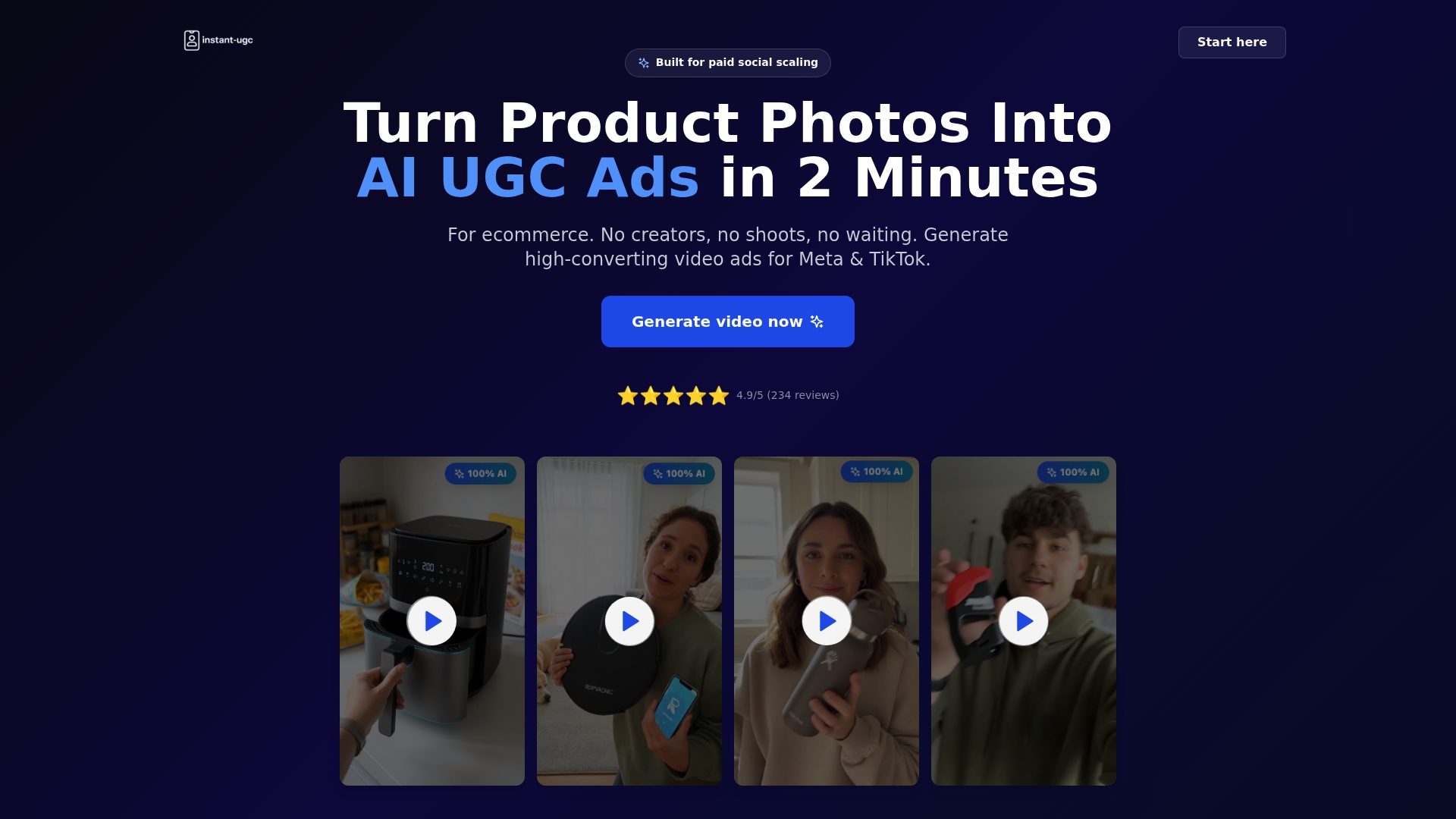
That speed matters most once you start testing. Instead of committing to one preview and hoping it converts, you can generate several device-specific variants for a Product Page Optimization run, or build localized versions across supported languages for international storefronts without restarting production from scratch each time.
- Generate a first draft, check the poster frame and on-screen text at phone size, then upload to App Store Connect for review.
- Produce multiple variants in parallel to feed a PPO or Custom Product Pages test rather than testing one change at a time.
- Reuse the same workflow for localized language variants when expanding into new storefronts.
A single test video runs $9 as a one-off, and monthly plans start at $19 with Starter, scaling up through Growth at $39 and Pro at $99 for teams running more variants at once. Visit the product page to see what a prototype looks like for your app.
10. Key Apple documentation and resources
For the specs and rules covered here, check Apple’s app preview specifications, App Previews guidance, and the App Review Guidelines. For visual pacing and muted-autoplay storytelling tactics that complement Apple’s own rules, see this brand storytelling guidance and these visual hierarchy tips.
FAQ
What are the App Store guidelines for video previews?
App preview videos must run 15 to 30 seconds, stay under 500MB, and use H.264 or ProRes 422 (HQ) encoding saved as .mov, .m4v, or .mp4. Footage must show only real in-app content, with no staged external shots or implied features, per Apple’s App Review Guidelines.
Does Apple still take 30% of app revenue?
Apple’s commission structure varies by program and revenue tier and is not part of the video specification rules covered in this guide. Check Apple’s own developer program documentation for current commission details specific to your app category and revenue level.
What are the rules for screenshots in the App Store?
Screenshots follow device-specific size requirements set by Apple and appear alongside app previews on your product page, though they are governed by separate technical specifications rather than the video rules covered here. Apple’s App Store Connect help documentation lists exact dimensions per device.
What does “0 of 3 app previews” mean in App Store Connect?
This label shows in App Store Connect when no previews have been uploaded yet for a given device size or localization, out of the maximum of three previews per device and locale that Apple allows. It is a placeholder count, not an error, and simply indicates open upload slots.
Can I use voiceover or music in an app preview?
Yes, but treat audio as texture rather than a requirement, since previews autoplay muted on the App Store product page. Any information essential to understanding your app should appear visually, through on-screen text or clear action, so the preview works fully with sound off.
