Vertical Video Ratio: What Creators and Marketers Need to Know
Discover why the 9:16 vertical video ratio is essential for engaging viewers on platforms like TikTok and Instagram. Unlock your content's potential!
Use 9:16 at 1080×1920 pixels for vertical social video. That single choice covers TikTok, Instagram Reels and Stories, YouTube Shorts, Facebook Reels, and Snapchat — the formats where mobile viewers spend the most time. According to Castr’s vertical video guide, 9:16 is the recognized standard for mobile-first short-form placements, and 1080×1920 is the Full HD vertical resolution that matches it.
Here are the two pixel sizes you’ll use most:
- 1080×1920 — Full HD vertical. Use this as your default for every major platform. It renders sharply on modern phones and meets the upload specs for TikTok, Reels, and Shorts without platform upscaling.
- 720×1280 — Minimum acceptable quality. LiveAPI’s vertical video dimensions guide lists this as the floor; go below it and most phones will show visible softness.
A few platforms accept other portrait ratios. Instagram Feed and Facebook Feed both support 4:5 (1080×1350), which is taller than square but shorter than full vertical. Pinterest Video Pins work at 2:3 (1000×1500). When you’re repurposing footage across placements, convert carefully — a 9:16 crop applied to a 4:5 frame will cut the top and bottom of your shot.
Key Takeaways
For most creators and marketers, 9:16 at 1080×1920 is the correct vertical video ratio for every major mobile social platform, with 720×1280 as the minimum acceptable resolution and platform-specific cuts required for Instagram Feed (4:5) and Pinterest (2:3).
| Point | Details |
|---|---|
| Default ratio and resolution | Use 9:16 at 1080×1920 for TikTok, Reels, Shorts, Stories, and Snapchat. |
| When to use alternatives | Choose 4:5 (1080×1350) for Instagram and Facebook Feed; 2:3 (1000×1500) for Pinterest Video Pins. |
| Export preset | MP4/MP4, 8–12 Mbps VBR, AAC audio at 192 kbps, Rec. 709 color, frame rate matching source. |
| Conversion workflow | Shoot native vertical when possible; use blurred background fill or animated backgrounds when converting horizontal footage. |
| Multi-platform publishing | Export separate files per platform rather than relying on one master to adapt across placements. |
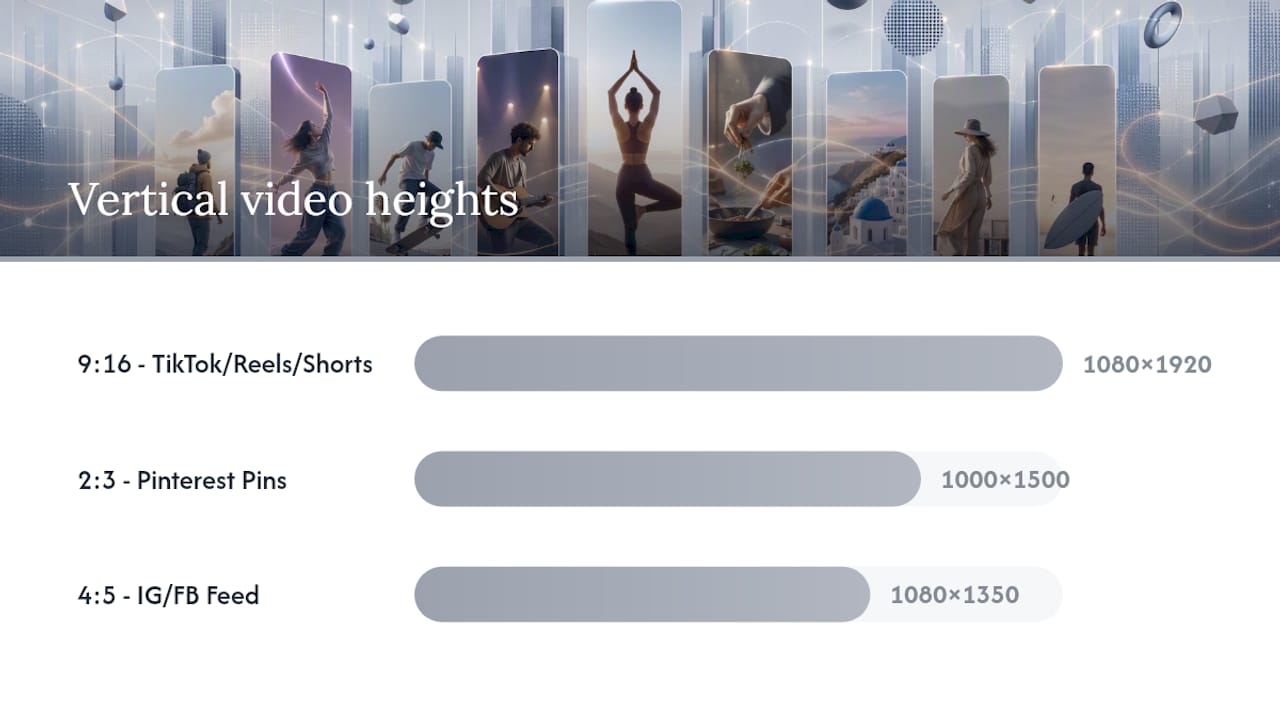
Table of Contents
- What’s the difference between vertical video ratio and resolution?
- Common vertical aspect ratios and their pixel dimensions
- Platform-by-platform specs: what to use where
- How do you convert horizontal footage to vertical?
- Export and encoding settings that work across platforms
- Composition and safe areas: keeping text and action visible
- Why vertical video performs better on mobile
- Pre-upload checklist for vertical video assets
- My take on vertical video workflows
- Sources
What’s the difference between vertical video ratio and resolution?
These two terms describe different things, and mixing them up causes real export problems.
Aspect ratio is the proportional relationship between width and height, expressed as two numbers separated by a colon. 9:16 means the frame is 9 units wide and 16 units tall. The numbers describe shape, not pixel counts. As Castr explains, a ratio can map to multiple resolutions — 9:16 works at 1080×1920, at 720×1280, and even at 540×960, all with the same shape.
Resolution is the actual pixel count: width × height. Higher resolution means more detail. A 9:16 frame at 1080×1920 has four times the pixels of one at 540×960, even though both are the same shape.
Why does this matter? Uploading a low-resolution file to a platform that displays at 1080×1920 forces the platform to upscale your video. The shape stays correct, but the image goes soft. The fix is straightforward: always match your export resolution to the platform’s recommended display size, not just its accepted ratio.
Think of it this way. The ratio is the frame of a window; the resolution is the quality of the glass. You can have the right shape with blurry glass, or the wrong shape with perfect clarity. You want both correct.
Common vertical aspect ratios and their pixel dimensions
The table below covers the portrait and near-portrait ratios you’ll encounter across social and ad platforms, with recommended pixel dimensions for each.
When to use each ratio:
- 9:16 — Default for any full-screen vertical placement. Fills the phone screen completely and is the format TikTok, Instagram Stories, and YouTube Shorts are built around.
- 4:5 — The smart choice for Instagram and Facebook feed posts where a full 9:16 gets cropped to 4:5 anyway. Shooting or exporting at 4:5 gives you control over what stays in frame.
- 2:3 — Pinterest-specific. Video Pins display at this ratio in the feed, so a 9:16 master will be center-cropped unless you export a dedicated 2:3 cut.
- 1:1 — Useful when you need one file that works across multiple feed placements without cropping. Not ideal for immersive mobile viewing, but practical for cross-posting efficiency.
The 1080×1920 default and 720×1280 minimum apply specifically to 9:16 content, per LiveAPI’s dimensions guide.
Platform-by-platform specs: what to use where
TikTok
- Ratio: 9:16
- Resolution: 1080×1920
- Max file size: 287.6 MB (iOS), 72 MB (Android) for standard uploads; higher for Creator accounts
- Duration: 15 seconds to 10 minutes; ads typically perform best at 15–60 seconds
TikTok renders video at full screen in portrait mode. Anything not at 9:16 gets letterboxed or pillarboxed, which immediately signals “repurposed content” to viewers.
TikTok’s UI overlays — username, caption, audio label, and like/comment buttons — eat into both the bottom and right side of the frame.*
Instagram Reels and Stories
- Ratio: 9:16
- Resolution: 1080×1920
- Max file size: 4 GB
- Duration: Reels up to 90 seconds; Stories up to 60 seconds per clip
Stories and Reels both display at full 9:16. Instagram will center-crop a 4:5 or 1:1 upload to fit the Stories player, so always export a dedicated 9:16 cut for these placements.
Instagram Feed
- Ratio: 4:5 (portrait feed posts)
- Resolution: 1080×1350
- Duration: Up to 60 minutes for video posts
Feed video is cropped to 4:5 in the grid view regardless of the uploaded ratio. Export at 4:5 to control the crop yourself.
Pro Tip: If you shoot at 9:16 and need a 4:5 cut, reframe in post rather than letting Instagram auto-crop. The platform’s automatic crop often misses faces or key product shots.
YouTube Shorts
- Ratio: 9:16
- Resolution: 1080×1920
- Duration: Up to 60 seconds (3 minutes starting early 2026)
- Max file size: 256 GB or 12 hours (standard YouTube limits apply)
Google Ads Help documents that the YouTube app adjusts the player to the uploaded video’s dimensions, and vertical 9:16 videos can cover up to 100% of the screen in portrait fullscreen. For Shorts ads, Google recommends including 9:16 alongside 16:9 and 1:1 assets in the same campaign.
Pro Tip: YouTube Shorts loops automatically. Design your ending to connect back to your opening so the loop feels intentional rather than abrupt.
Facebook Reels and Stories
- Ratio: 9:16
- Resolution: 1080×1920
- Duration: Reels up to 90 seconds; Stories up to 20 seconds per clip
Facebook Stories and Reels share the same 9:16 spec as Instagram. If you’re running Meta campaigns, one 9:16 master file covers both placements.
Snapchat
- Ratio: 9:16
- Resolution: 1080×1920
- Duration: Up to 60 seconds for Snap Ads; 3–5 seconds is the sweet spot for unskippable ad units
Snapchat was among the first platforms to standardize 9:16 for its full-screen ad format, as noted in Api. Its audience expects native vertical content; horizontal or letterboxed video performs noticeably worse.
Pinterest Video Pins
- Ratio: 2:3 or 9:16
- Resolution: 1000×1500 (2:3) or 1080×1920 (9:16)
- Duration: 4 seconds to 15 minutes; 6–15 seconds for promoted pins
Pinterest’s feed is vertical by design, but Video Pins display at 2:3 in the grid. A 9:16 upload is accepted but center-cropped in the feed view. Export a 2:3 cut for the best result.
- Ratio: 9:16 (vertical), 1:1 (square), or 16:9 (horizontal)
- Resolution: 1080×1920 for vertical
- Duration: 3 seconds to 30 minutes; under 30 seconds for ads
LinkedIn’s feed is primarily desktop-viewed, but mobile usage is growing. Vertical video works in the mobile feed; for desktop-heavy audiences, 1:1 is often a safer cross-device choice.
How do you convert horizontal footage to vertical?
Converting a 16:9 clip to 9:16 is possible, but it always involves a trade-off. Here’s a reliable workflow:
- Set your target ratio first. Open your editing software (Premiere Pro, DaVinci Resolve, CapCut, or Final Cut Pro) and create a new sequence or project at 1080×1920. Never try to convert inside a 16:9 sequence.
- Drop in your horizontal footage. The clip will appear as a wide bar in the center of the tall frame, with black bars above and below.
- Reposition and scale. Zoom in until the footage fills the frame. You’ll lose the left and right edges — plan your reframe around the subject, not the original composition.
- Decide on a fill strategy for empty space. If scaling creates dead zones, you have three options:
- Crop and reframe — scale aggressively to fill the frame. Works when the subject is centered and the lost edges don’t matter.
- Blurred background fill — duplicate the layer, scale it to fill the frame, apply a heavy blur, and place the sharp layer on top. Looks intentional and keeps the full subject visible.
- Animated background or graphic extension — add a branded color field, motion graphic, or product image in the empty space. Turns a limitation into a design opportunity.
- Export with correct orientation metadata. Set the sequence to 1080×1920 before exporting. Some encoders write incorrect rotation flags if you export a vertical sequence from a horizontal project without resetting the sequence settings.
Pros and cons at a glance:
- Crop and reframe: Fast, clean result. Loses frame edges; tight shots may cut faces or products.
- Blurred background fill: Keeps full subject. Adds render time; can look generic if overused.
- Animated background: Most polished. Requires design work; best for ads.
- Native vertical capture: Best quality, no compromise. Requires planning the shoot for vertical from the start.
Pro Tip: When shooting footage you know you’ll repurpose vertically, frame your subject in the center third of the horizontal frame. That center strip survives a 9:16 crop without losing the key action.
Export and encoding settings that work across platforms
Use these presets as your starting point to optimize your content effectively for SEO and social platforms using guidance from Semdash. Adjust bitrate up for high-motion content (sports, fast cuts) and down when file size is a hard constraint.
| Setting | MP4 (Standard) | MP4 (Efficient) |
|---|---|---|
| Container | MP4 | MP4 |
| Codec | MP4 | MP4 (Efficient) |
| Resolution | 1080×1920 | 1080×1920 |
| Bitrate (VBR) | 8–12 Mbps | 5–8 Mbps |
| Frame rate | Match source (24, 30, or 60 fps) | Match source |
| Audio codec | AAC | AAC |
| Audio bitrate | 192 kbps | 192 kbps |
| Color profile | Rec. 709 | Rec. 709 |
LiveAPI’s export guidance recommends MP4/MP4 as the safest container for social uploads, with VBR bitrates in the 8–15 Mbps range for 1080×1920 content and frame-rate preservation at 24–60 fps to match the source material.
Additional encoding notes:
- Frame rate: Use 30 fps for most social content. Use 60 fps only if your source footage was shot at 60 fps — converting 24 fps to 60 fps doesn’t add smoothness, it adds judder.
- H.265 trade-off: H.265 produces smaller files at equivalent quality, but some older devices and a few upload pipelines still have limited H.265 support. When in doubt, MP4 is universally safe.
- Orientation metadata: Always export from a vertical sequence (1080×1920), not a horizontal one with a rotation tag. Rotation-tag workarounds cause sideways playback on some players.
- File size limits: TikTok’s standard limit is 287.6 MB on iOS. Instagram accepts up to 4 GB. YouTube’s standard limit is 256 GB. For ad platforms, check the campaign manager’s current spec sheet before uploading — limits for paid placements sometimes differ from organic.
For creators building a library of multi-format video assets, exporting separate files per platform is more reliable than relying on one master file to adapt across placements.
Composition and safe areas: keeping text and action visible
The safe area concept comes from broadcast television, but it applies directly to vertical social video. Platform UI elements — captions, usernames, like buttons, audio labels — overlay the frame and can hide text or key visuals if you place them too close to the edges.
Recommended margins for 1080×1920:
- Top 8–14% (roughly 150–270 pixels from the top): avoid placing titles or logos here. Snapchat and TikTok place profile information in this zone.
- Bottom 15–20% (roughly 290–380 pixels from the bottom): the most dangerous zone. TikTok’s caption, audio label, and action buttons stack here. Instagram’s username and audio credit sit in this area too.
- Right edge, bottom 50%: TikTok’s like/comment/share column runs here. Keep CTAs and product shots away from this strip.
Composition tips for tall frames:
- Use vertical motion (camera tilts, subject movement up or down the frame) to take advantage of the tall canvas. Horizontal pans feel awkward in 9:16.
- Apply the rule of thirds vertically: place your subject’s eyes or the product’s key feature at roughly one-third from the top of the frame, not dead center.
- For close-ups, leave headroom. A face that fills the entire frame looks cramped in 9:16 and leaves no room for text overlays.
Pro Tip: Before finalizing any vertical ad, export a low-resolution proof and play it on your actual phone with the platform’s app open. Simulator previews in editing software don’t show real UI overlays — only the live app does.
Why vertical video performs better on mobile
Mobile devices account for a substantial share of video consumption, and the format advantage of vertical content on those devices is well-documented. Statista’s device distribution data for YouTube shows a high proportion of visits coming from mobile, which directly supports prioritizing portrait-oriented formats for any campaign targeting mobile viewers.

The mechanical reason is simple: a 9:16 video fills the phone screen without requiring the viewer to rotate the device. Google Ads Help notes that vertical videos for Shorts can cover up to 100% of the screen in portrait fullscreen, creating a more immersive experience than a 16:9 video with black bars above and below.
Industry reporting cited by api.video’s 9:16 analysis points to measurable engagement improvements for vertical placements — higher completion rates and stronger watch time compared to horizontal equivalents in mobile feeds. Treat those figures as indicative rather than universal; results vary by category, creative quality, and audience. The structural advantage of filling the screen, though, holds across platforms.
Pre-upload checklist for vertical video assets
Run through this list before every upload to catch the errors that cause black bars, sideways playback, and soft images.
Before export:
- [ ] Sequence or project is set to 1080×1920 (not 1920×1080 with a rotation flag)
- [ ] Safe area margins confirmed: no titles or CTAs in the top 14% or bottom 20% of the frame
- [ ] Bitrate set to 8–12 Mbps VBR for MP4 at 1080×1920
- [ ] Frame rate matches source footage (24, 30, or 60 fps)
- [ ] Audio codec set to AAC at 192 kbps
- [ ] Color profile set to Rec. 709
After export:
- [ ] Play the exported file on a phone before uploading — confirm it plays vertically without rotation
- [ ] Check file size against the target platform’s limit
- [ ] Upload a short test clip to the platform and preview it in the app, not the browser
- [ ] Confirm no unexpected cropping at the top, bottom, or right edge
- [ ] Check that captions or auto-generated subtitles don’t overlap key text
Common problems and fixes:
- Black bars on sides: Your footage is 16:9 inside a 9:16 sequence. Scale up or apply a background fill.
- Sideways playback: You exported from a horizontal sequence with a rotation tag. Re-export from a correctly configured vertical sequence.
- Soft or blurry image: Source resolution is below 720×1280, or the platform upscaled a low-res file. Re-export at 1080×1920.
For creators managing video content libraries across multiple platforms, keeping platform-specific export presets saved in your editing software eliminates most of these errors at the source.
My take on vertical video workflows
The debate between “shoot vertical natively” and “convert horizontal footage” is mostly settled for short-form social. If TikTok, Reels, or Shorts are your primary placements, shoot vertical from the start. The quality difference is real, and the composition control you get with a native 9:16 frame is worth the workflow adjustment.
Where it gets more nuanced is multi-platform campaigns. Shooting open-frame horizontal at 4K gives you enough resolution to export a clean 9:16 crop, a 4:5 cut, and a 16:9 master from a single source file. That flexibility has genuine value when you’re producing content for YouTube long-form, paid social, and organic feed simultaneously. The trade-off is that your 9:16 crop will always be a compromise — you’re working with a center slice, not a frame designed for vertical.
The fastest path to high-volume vertical ad production, particularly for e-commerce and app brands, is AI-assisted generation. Platforms like Instant-ugc output natively in 9:16, skipping the conversion step entirely and delivering platform-ready files in minutes rather than days. For brands running dozens of ad variations across TikTok and Meta, that speed advantage compounds quickly.
Sources
The specs and recommendations in this guide draw from official platform documentation and authoritative industry explainers. These are the primary references worth bookmarking:
- What Is Vertical Video Aspect Ratio? - Castr’s Blog
- A Complete Guide to Vertical Video Dimensions - LiveAPI Blog
- Use square and vertical video to engage mobile customers - Google Ads Help
- Statista
- What is the 9:16 aspect ratio and why it rules the screen
If you’re producing vertical video ads at scale and want to skip the conversion workflow entirely, Instant-ugc’s AI TikTok ads generator and Facebook ads video generator output natively in 9:16, ready to upload.
Recommended
- Video Ad Creator AI: The Ultimate Guide to Creating Mobile-Optimized Ads in 2026 | Instant-UGC Blog
- The Best Video Length for UGC Ads: Data-Backed Guide to Maximizing Performance | Instant-UGC Blog
- AI Marketing Video Maker: The Ultimate Guide to Streamlining Your Video Content in 2026 | Instant-UGC Blog
- UGC for DTC Brands: The Ultimate Guide to Content Creator Tools, Video Ads Generators & Platforms in 2026 | Instant-UGC Blog
