Build Screenshot to Video Ads in 90–120 Seconds for Marketers
Create screenshot-based video ads in 90–120 seconds. Test two hooks, use 3–5 screenshots, and produce clips for $4–$7 each while improving ROAS 2.1x–4.8x.
Yes, you can turn static screenshots into platform-ready video ads in minutes using AI, no cameras or creators required. The typical workflow, upload, script, animate, export, produces a finished 9:16 clip in about a couple of minutes. Brands using AI-driven UGC platforms report improved ROAS at a fraction of traditional production costs.
TL;DR:
- Converting screenshots into video ads with AI takes about two minutes per clip and costs between $4 and $7, enabling rapid testing.
- Essential features include automated sequencing, layered animation options, smart callout detection, and multi-language AI voiceovers for best results.
- Exportting in vertical 9:16 ratio for platforms like TikTok and Reels avoids cropping issues, with recommended lengths around 10 seconds for optimal engagement.
- Focusing on the first 1 to 3 seconds, keeping demonstrations short, and testing variants with different hooks significantly improves ad performance.
- Prioritize high-contrast, clutter-free screenshots showing clear results to ensure quality and relevance before turning them into platform-ready videos.
Table of Contents
- How to Convert Screenshots to Video Ads Step by Step
- What Features Actually Matter in a Screenshot Video Tool
- Which Aspect Ratio and Length Should You Export?
- What Creative Rules Actually Move Performance?
- How Much Time and Money Should You Budget?
- Where Does This Workflow Fit Your Business?
- What Does Instant-UGC’s Own Data Show?
- Can You Legally Use Screenshots in Video Ads?
- How Do the Leading Screenshot-to-Video Tools Compare?
- How Do You Publish These Ads Without Extra Steps?
- What Makes a Screenshot Actually Video-Ready?
- What’s the Smartest Way to Use This Workflow?
- Ready to Test Your First Screenshot Ad?
- Sources
How to Convert Screenshots to Video Ads Step by Step
Turning a folder of screenshots into a working ad follows a predictable sequence. Skip a step and you’ll spend more time fixing the output than you would have spent doing it right the first time.
- Prep your screenshots. Crop out browser chrome, notification badges, and anything unrelated to the feature or product you’re showcasing. Higher resolution originals give the animation engine more room to zoom and pan without pixelating.
- Write or generate the hook and script. You need one punchy hook line plus two or three supporting beats that explain the value. Tools with automatic script generation can draft this from the screenshot content itself, which saves the blank-page problem.
- Choose sequencing and animation. Decide the order screenshots appear in, then apply motion presets and callout annotations to draw the eye to specific buttons, prices, or results.
- Add captions, voiceover, and music. Burn in captions for sound-off viewing, select a voiceover or AI avatar, and preview the full cut before committing.
- Export platform variants and test two hooks. Render separate files for each placement and generate a second version with only the opening line changed.
That last step matters more than most people assume. Per the full AI video-ad workflow breakdown from Morphed, pipelines that separate the hook from the b-roll and captions consistently outperform single static clips because each element can be tested and swapped independently.
What Features Actually Matter in a Screenshot Video Tool
Not every screenshot-to-video tool does the same job. Some just animate a single image with a gradient background, per how simple screenshot animators like Krumzi approach the category, while others build a full sequenced ad with pacing logic and voice. The gap between those two categories is where your ad performance actually lives.
Look for these capabilities before committing to a tool:
- Automated sequencing and pacing that decides how long each screenshot holds based on its content density, not a fixed timer.
- Layered animation options, including Ken Burns style zoom, subtle parallax, and element reveals, with manual override on timing.
- A caption and typography engine with preset styles rather than a single default font stuck at the bottom of the frame.
- Smart callout and element detection that can circle a button or highlight a price without you drawing boxes by hand.
- AI voiceover and lip-synced avatars with multi-language support, useful if you’re running the same creative across different markets.
Pro Tip: Test a tool’s element detection on a screenshot with small text or a crowded interface first. That’s where weaker tools blur callouts or misplace annotations, and it’s the fastest way to spot a tool that won’t scale past simple demos.
Which Aspect Ratio and Length Should You Export?
Getting the export specs wrong is the single most common reason a first screenshot ad gets rejected or looks cropped on delivery. Native vertical generation avoids the cropping problem entirely, since platform format guidance from Adwave confirms that resizing a horizontal clip after the fact almost always cuts off key UI elements or text.
| Platform | Aspect ratio | Recommended length | Notes |
|---|---|---|---|
| TikTok / Reels / Shorts | 9:16 | around 10 seconds | Native vertical, burn-in captions required |
| Instagram feed | 1:1 or 4:5 | moderate length | Square performs well in dense feeds |
| YouTube skippable | 16:9 | moderate length | Hook must land before the skip button appears |
Stick to 1080×1920 resolution for vertical formats, exported as MP4 using H.264 encoding, which keeps file sizes manageable without sacrificing screenshot text clarity. Before you upload anywhere, run through a quick checklist: confirm the aspect ratio matches the placement, check the frame rate is a standard 24, 30, or 60fps, and keep the file under each platform’s size ceiling. Basic image-to-video converters support MP4, WebM, and MOV exports if you need a fallback format for a specific ad network.
What Creative Rules Actually Move Performance?
Most of the difference between a screenshot ad that converts and one that gets scrolled past comes down to five decisions, and they’re all things you control before you hit export.
- Win the first 1 to 3 seconds. A visual interruption paired with a one-line spoken or on-screen hook determines whether anyone watches beyond the first second. This is consistently the single most important element of any UGC-style ad.
- Keep the demo tight. For feed placements, the core product or app demonstration should wrap inside 9 to 15 seconds. Longer cuts belong on YouTube, not TikTok or Reels.
- Change one variable at a time. When testing variants, swap only the hook, visual and line, and leave the rest of the creative untouched. That isolates what’s actually driving the performance difference.
- Burn in captions early and place your CTA late. Sound-off viewing is the default on most feeds, so captions need to appear from the opening frame. Your call to action works best near the end and repeated in caption text.
- Use restrained motion. Two or three subtle motion layers, a soft zoom, a callout fade, a caption slide, read as more authentic than heavy animated transitions that feel like a corporate explainer video.
Pro Tip: Run your first test with three hook variants and identical everything else. You’ll usually know within a few hundred impressions which opening line is worth scaling, without touching your budget for the rest of the creative.
How Much Time and Money Should You Budget?
Speed and cost are where AI screenshot workflows separate themselves from traditional production most clearly. AI-generated screenshot ads render in a couple of minutes, compared to the two to three weeks a traditional UGC creator typically needs to shoot, edit, and deliver a finished clip.
- AI-generated video: roughly $4 to $7 per video, scaling down further as you batch variants.
- Creator-produced UGC: typically $500 to $2,000 per video, with turnaround measured in weeks, not minutes.
- Testing economics favor volume. Generating five hook variants for the cost of one traditional video lets you find a winner faster than waiting on a single creator-shot asset.
- Reserve higher-fidelity, creator-shot production for brand hero content or long-form testimonials, where a real human telling an unscripted story still outperforms an AI avatar.
Where Does This Workflow Fit Your Business?
Screenshot-to-video ads aren’t a one-size tactic. The format fits differently depending on what you’re selling and who’s watching.
- App and SaaS teams turn App Store screenshots or in-product UI captures into short demo ads that show a feature working instead of describing it.
- E-commerce brands convert product-detail page screenshots or carousel images into quick demo-style ads without waiting on a photo shoot.
- SaaS marketers highlight a specific onboarding flow or dashboard moment as a micro-demo, which tends to convert better than a full walkthrough.
- Agencies use the speed advantage to run rapid creative testing across an entire client catalog, often delivering white-label variants under their own branding.
What Does Instant-UGC’s Own Data Show?
Some AI-powered UGC platforms generate a finished, UGC-style screenshot video in roughly 90 to 120 seconds, delivering a ready-for-platform 9:16 master without requiring a manual editing pass afterward. That speed comes from two dedicated workflows built for different inputs.
Some AI video ad platforms offer workflows tailored to physical product photos and others designed for app and SaaS screenshots, producing testimonial-style videos optimized for app store placements and paid social. Features can include automatic script generation, multiple customizable AI avatars, and support for multiple languages, enabling localized variants without reshooting.
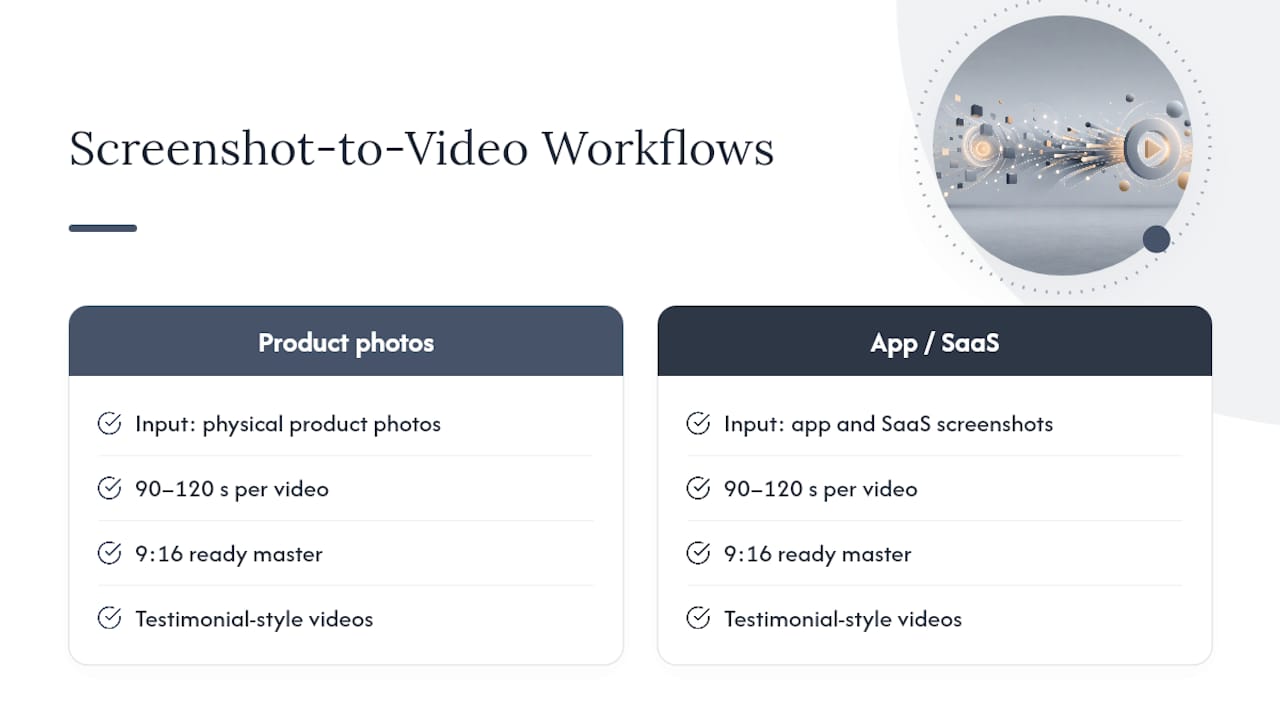
The reported outcome is the number that matters most to marketers deciding whether to switch: brands using the AI product video generator report ROAS improving from 2.1x to 4.8x, alongside per-video costs that undercut traditional creator-shot UGC by a wide margin. For teams running constant creative tests, that combination of speed and price changes how many variants you can afford to try in a given week.
Can You Legally Use Screenshots in Video Ads?
Using your own product screenshots or app UI captures in a video ad is generally safe, since you own the underlying software or storefront being shown. The legal risk shows up when a screenshot includes something you don’t own or control: a competitor’s interface, a third-party logo, copyrighted stock imagery embedded in the page, or a person’s likeness captured incidentally in a review or social post.
A few practical rules keep you clear of most problems. Only use screenshots of your own product, app, or storefront, never a competitor’s, without explicit permission. If a screenshot captures user-generated content, a customer review, a social comment, a testimonial screenshot, get consent before featuring it in a paid ad, since testimonial use and organic sharing carry different permission standards. Strip out any third-party branding, stock photography, or fonts you don’t have a license for, since embedding someone else’s copyrighted asset inside your screenshot doesn’t remove their rights to it.
Platform ad policies add another layer on top of copyright law. Meta and TikTok both reserve the right to reject ads that misrepresent a product’s interface or imply an endorsement that doesn’t exist, regardless of who owns the screenshot. When in doubt on a specific use case, particularly anything involving another brand’s product or a real customer’s face, a quick legal review is cheaper than a takedown notice after the ad has already spent budget.
How Do the Leading Screenshot-to-Video Tools Compare?
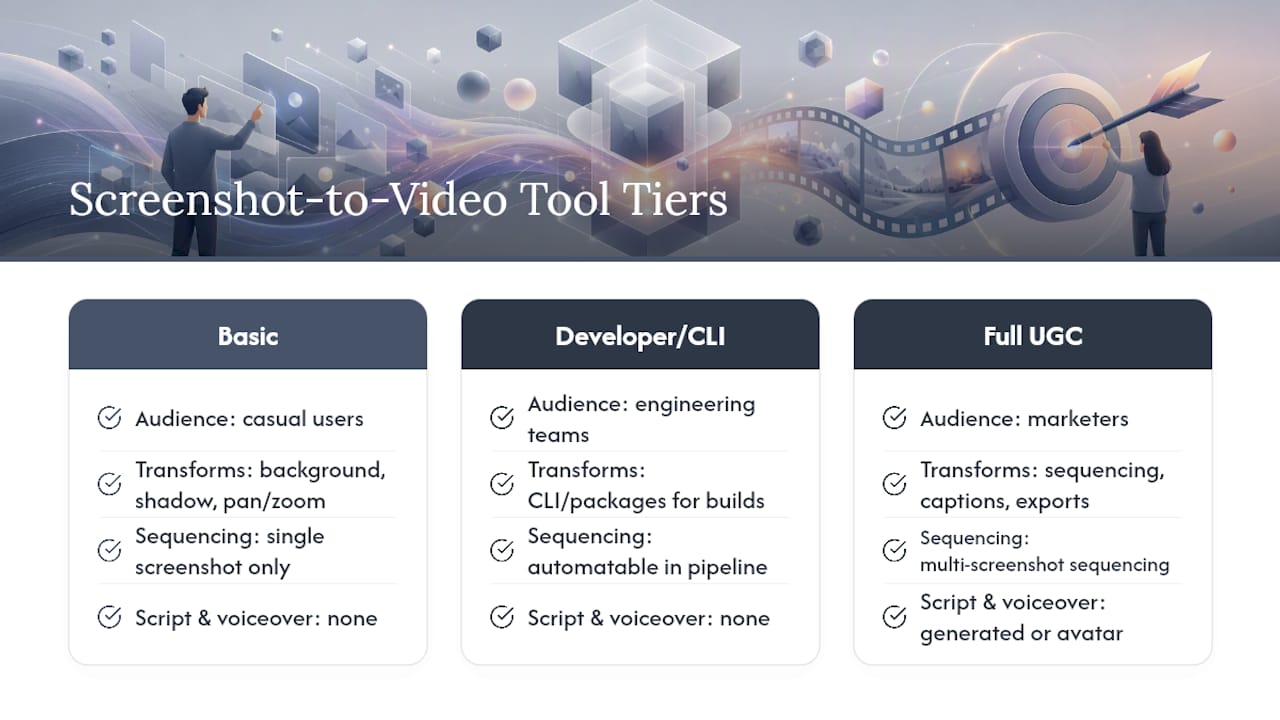
Screenshot-to-video tools generally split into three tiers, and knowing which tier you’re evaluating saves you from comparing a $10 hobby tool against a production platform on the wrong criteria.
Basic animators take a single screenshot and apply a background, shadow, and simple pan or zoom before exporting an MP4 or GIF. They’re free or nearly free and take seconds to use, but they don’t sequence multiple screenshots, generate scripts, or add voiceover, so the output looks more like a polished thumbnail than a finished ad.
Developer and CLI tools exist for teams that want to bolt screenshot-to-video conversion into a build pipeline or app, using packages like revid-cli or plugin repositories such as hooked-skill. These suit engineering teams automating video generation at scale, not marketers who need a finished ad ready to run today.
Full UGC-style platforms cover the entire pipeline, script generation, sequencing, voiceover or avatar narration, caption production, and platform-specific export, in one pass. This tier is where pricing and features actually matter for a marketer’s decision, since the output is meant to go straight into ad spend rather than serve as a raw asset for further editing. Instant-UGC sits in this category, built specifically around turning screenshots into finished, testable ad variants rather than a single decorative clip.
How Do You Publish These Ads Without Extra Steps?
The value of a fast screenshot-to-video workflow drops fast if you still have to manually download, rename, and re-upload every variant to each ad platform. Look for export presets that match Meta, TikTok, and YouTube specs natively, so a finished video is already sized correctly the moment it leaves the tool.
Some platforms support direct export to common ad formats without a separate resizing step, which matters most when you’re testing five or six hook variants at once and need each one placed on the right channel quickly. If you’re managing creative for multiple clients or a large catalog, an ad campaign workflow guide is worth reviewing alongside your creative tool, since distribution strategy and creative production are separate problems that both need solving before a campaign actually launches.
For teams without dedicated video editors, a lightweight publishing routine, generate, export in the correct aspect ratio, upload directly to the ad manager, cuts out the manual file-handling that used to eat up half a campaign launch day. The fewer hands a video passes through between generation and going live, the faster you can react to early performance signals and kill or scale a variant.
What Makes a Screenshot Actually Video-Ready?
Not every screenshot deserves to become an ad. Selection and quality matter more than most people realize before they’ve generated their tenth mediocre clip.
Choose screenshots with high contrast and minimal visual clutter, since a busy interface with ten competing elements gives the viewer nothing to focus on in a three-second window. Capture at native device resolution rather than a scaled-down or compressed version, since animation engines lose quality fast when they have to zoom into a low-resolution source image. Crop out anything irrelevant to the message, status bars, unrelated notifications, browser tabs, before you upload, rather than relying on the tool to hide it during animation. Prioritize screenshots that show a clear before-and-after or a specific result: a price, a rating, a completed action, since concrete outcomes read faster than a generic dashboard view. Finally, gather three to five screenshots per ad rather than relying on one, since a short sequence gives you room to build a hook, a demonstration, and a payoff without cramming everything into a single frame.
What’s the Smartest Way to Use This Workflow?
The conventional advice on AI video ads treats speed as the whole story, generate fast, post often, and volume wins. That’s incomplete. Speed only pays off when it’s paired with disciplined testing, and most marketers skip the testing discipline because the generation step feels like the finished product.
The bigger opportunity is treating every screenshot batch as a testing set, not a single ad. Three to five screenshots, two hook variants, and one identical body creates six potential ads from work that used to produce one.
Where most teams go wrong is stopping at the first render instead of treating it as variant one of several. Prioritize the hook test before you touch pacing, avatars, or music, since that’s the lever the research consistently points to as the highest-leverage change. Everything else is refinement once you know which opening line earns attention.
— Syno
Ready to Test Your First Screenshot Ad?
Certain AI UGC platforms offer a faster and more cost-effective alternative to traditional creators, with pricing substantially lower per video. Dedicated workflows can handle SaaS screenshots separately from product photos, avoiding template mismatches.
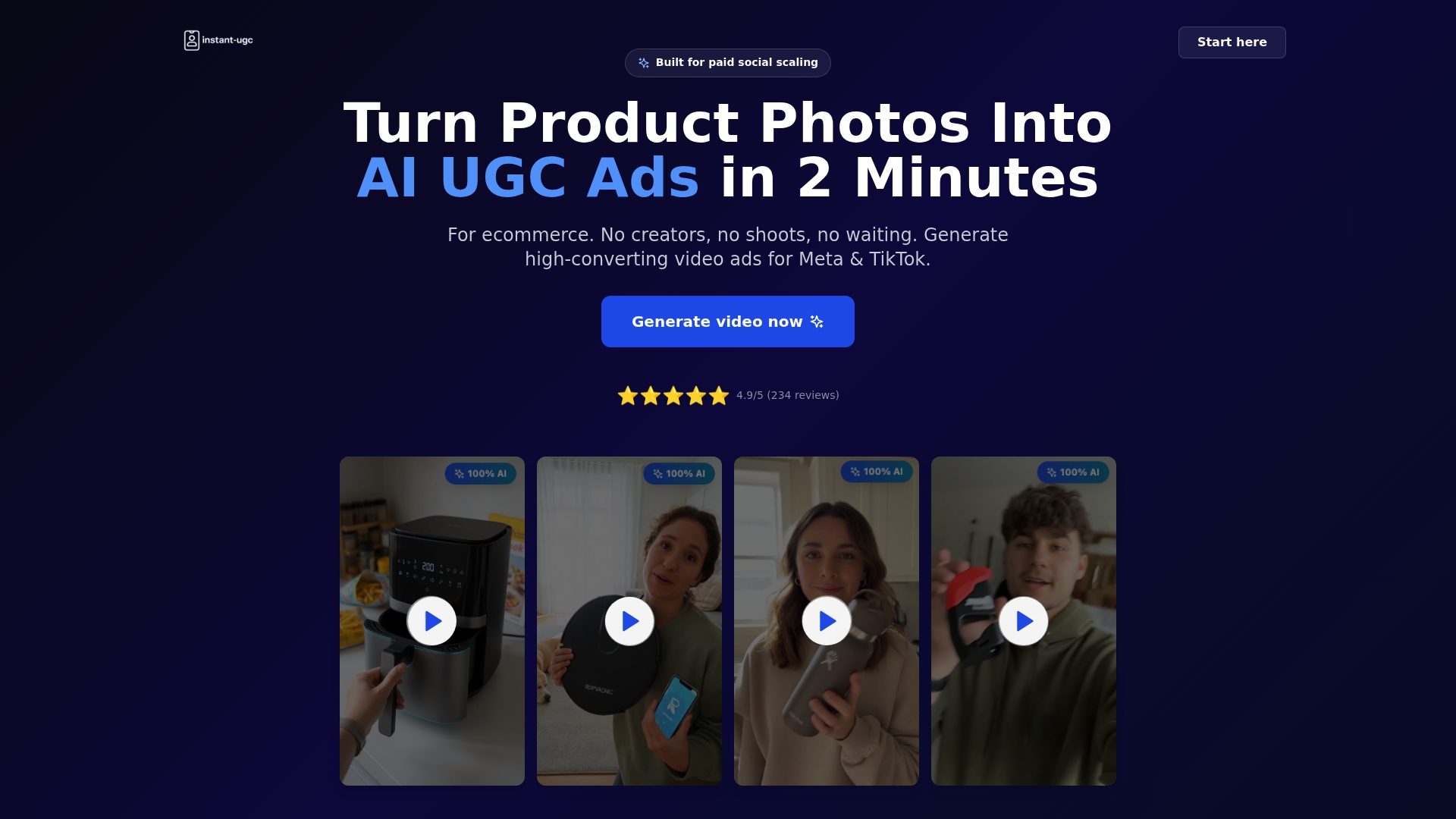
Before you start, gather three to five screenshots of your app, product page, or key feature, write one clear hook line, and decide which platform you’re targeting so you know whether you need 9:16 or a landscape format. Run your first test as one UGC-style ad with two hook variants and identical b-roll, then compare results before scaling to a full batch. The AI product video generator is the fastest starting point for that first test, and if you’re planning to run several variants at once, the ad creative testing guide walks through how to structure the batch so you learn the most from your budget.
Sources
- Ezgif
- How to Make a Video Ad in 2026: Complete Guide · Adwave
- How to Make AI Video Ads: The Full Workflow (2026) | Morphed
