Scale Google App Campaign Videos Without New Shoots
Practical playbook for Google App Campaign videos: specs, placements, testing tactics, and an AI workflow to produce vertical test variants.
Supply multiple short, vertical and landscape videos that show the app in actual use, hook viewers in the first 2 to 3 seconds, and upload them to YouTube so Google can place them across the network. That’s the whole strategy in one sentence. Coverage, attention, and automation are the three reasons it works: enough asset variety to fill every placement, a fast enough hook to survive skippable inventory, and enough raw material for Google’s system to find winning combinations on its own. The two production priorities to nail first are aspect ratio and hook length, and everything else in this article builds from those two decisions.
TL;DR:
- Use a variety of aspect ratios, especially vertical formats, because mobile in-app inventory favors 9:16 videos that improve conversion lift by about 60%.
- Create multiple short videos focused on a single feature or outcome, as 6 to 10 second variants outperform longer, multi-feature clips in different placements.
- Upload videos to YouTube first, ensuring captions are included and logos are kept within safe margins to prevent cropping issues during integration.
- Test different creative styles, lengths, and angles side by side to identify the best performers across placements and prevent creative fatigue.
- Leverage instant-ugc technology to generate multilingual testimonial videos from screenshots within minutes, expanding testing capacity without costly shoots.
Table of Contents
- Where Do Google App Campaign Videos Actually Appear?
- What Video Specs Does Google Require for App Campaigns?
- Creative Rules That Actually Move Install Numbers
- Recommended Aspect Ratios and Lengths by Placement
- How to Prepare and Upload Your Video Assets
- How to Test and Optimize App Campaign Video Performance
- Producing Enough Video Variants Without the Six-Week Wait
- What’s the Smartest First Test to Run?
- Turn Screenshots Into Test-Ready Video in Minutes
- Where to Verify These Video Specs and Guidelines
- Sources
Where Do Google App Campaign Videos Actually Appear?
App campaigns don’t run in one place. Google distributes your assets across five networks, and each one has a different viewing context that should shape how you cut your video.
- YouTube: in-stream and in-feed placements, often watched with sound and full attention.
- Google Play: store listing previews, viewed by people already close to installing.
- Google Display Network / AdMob: in-app banners and interstitials, usually sound off, glanced at for seconds.
- Discover: feed based, thumb driven, competing with organic content for attention.
- Search: text heavy surfaces where video plays a smaller supporting role.
If you skip video entirely, Google may auto-generate creative from your app’s store screenshots and description. It works in a pinch, but it can’t replicate a real demo of your app’s interface, and control over the message you’re sending disappears with it. Placement variety is exactly why Google’s App campaign networks call for asset diversity in the first place.
What Video Specs Does Google Require for App Campaigns?
Google Ads gives you room to work with, but only if you fill it. Here’s what actually matters for your export settings:
- Upload limit: you can add up to 20 video assets per ad group. Most advertisers stop at 5 or 6 and leave performance on the table.
- Aspect ratios: cover 16:9 (landscape, standard for YouTube), 1:1 (square, flexible across feeds), and 9:16 (portrait, dominant on in-app inventory). Skipping vertical is the single most common mistake.
- Lengths: aim for a spread. A 6 second cutdown covers bumper-style inventory, a 15 second version fits most feed placements, and a 20 to 60 second version gives you room for a fuller demo or UGC-style testimonial.
- Captions: burn them in or supply an SRT file. Sound-off viewing is common enough that a muted video with no text is a video nobody understands.
- Hosting: every video asset must live on YouTube first. Google Ads pulls the link, not a raw file.
Creative Rules That Actually Move Install Numbers
The best-performing app videos follow a short list of rules, and almost none of them are about production polish. They’re about attention and clarity.
- Hook within the first 2 to 3 seconds with a value statement or a piece of action. Google’s own creative guidance recommends multiple cuts in that opening window to keep skippable viewers watching.
- Show the real interface. Close-ups of a screen, a swipe, a tap, a result appearing. Abstract lifestyle footage tells viewers less than three seconds of actual UI.
- Keep branding visible early and often, but don’t let a logo animation eat your hook time. Store badges (App Store, Google Play) belong near the CTA, not buried mid-video.
- Add captions and a direct CTA (“Install now,” “Try it free”) rather than a vague sign-off.
- Match pacing to your audience. Younger demos respond to fast cuts and quick text overlays; a productivity or finance app can slow down and let the UI breathe.
Test a range of creative angles rather than betting on one: UGC-style testimonials, POV walkthroughs, quick how-to demos, and side-by-side comparisons all perform differently depending on category.
Pro Tip: Build every video around a single feature or outcome. A 20 second video trying to explain five features usually converts worse than five separate 6 to 10 second videos, each nailing one.
Recommended Aspect Ratios and Lengths by Placement
| Placement | Best aspect ratio(s) | Recommended length | Why |
|---|---|---|---|
| YouTube | 16:9, 1:1, 9:16 | 15 to 30s | Widest placement variety, supports full demos |
| Google Play preview | 16:9 or 9:16 | 15 to 30s | Viewers are already close to installing |
| AdMob / Display | 9:16 (portrait) | 6 to 30s | Portrait inventory dominates in-app impressions |
| Discover feed | 1:1 or 9:16 | 6 to 15s | Fast scroll, needs an immediate hook |
Portrait video tends to outperform landscape on mobile app inventory, and ePPC’s analysis of App campaign scaling points to roughly a 60% conversion lift for vertical over landscape in that context. Build every landscape master with a companion 9:16 cut rather than treating vertical as an afterthought.
How to Prepare and Upload Your Video Assets
Getting a video from your editing timeline into a live App campaign asset slot takes a few specific steps, and skipping one usually shows up as a cropping issue or a rejected asset later.
- Export with a safe area in mind. Keep captions, logos, and CTAs away from the outer 10% of the frame so cropping across ratios doesn’t clip anything important.
- Add captions before export, either burned in or as a separate SRT file, so the message survives sound-off viewing.
- Upload to YouTube first. Set privacy to public or unlisted (never private) so Google Ads can pull the asset.
- Add the YouTube link inside your App campaign’s asset group, then use the preview tool to check how Google’s automated system combines your videos with text and images.
- Watch for auto-generated fallback videos. If your uploads don’t qualify, Google may build one from your store screenshots, which is exactly why keeping your Play Store or App Store listing current matters even when you’re supplying your own creative.
Pro Tip: Preview your dynamic combinations before launch. Google mixes and matches your videos, images, and text automatically, and a caption that reads fine alone can look awkward paired with the wrong headline.
How to Test and Optimize App Campaign Video Performance
Once your videos are live, the real work starts. Watch install rate, cost per install (CPI), 7 and 30 day retention, and ROAS. Universal App Campaign bidding optimizes toward whatever goal you set, so if your KPI and your bid target don’t match, you’ll optimize for the wrong outcome.
- Run multiple creative themes side by side (UGC-style, POV, how-to) rather than one “best guess” video.
- Test lengths against each other. A 6 second cutdown and a 30 second demo often win in different placements.
- Use Google Play’s own store listing experiments to test preview videos separately from your ad creative.
- Refresh creative when CPI climbs, click-through rate drops, or retention starts sliding. Those three signals together usually mean creative fatigue, not audience saturation.
Portrait formats consistently make up a large share of in-app impression inventory, which is part of why vertical-first testing tends to surface winners faster than landscape-only test plans. When a variant wins, scale its budget and broaden its targeting, but keep two or three runner-up variants alive in rotation. Winner-take-all budget allocation burns out even a strong video within a few weeks.
Producing Enough Video Variants Without the Six-Week Wait
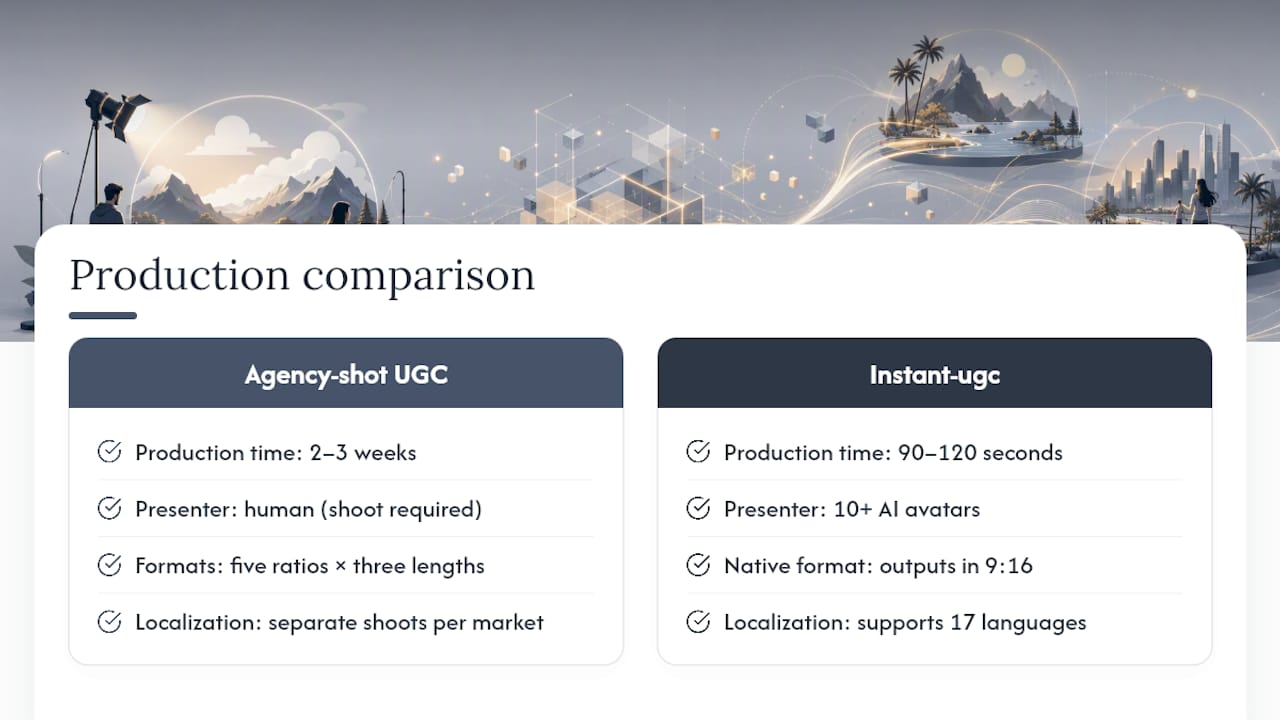
Everything above assumes you can actually produce the volume of variants Google’s automated system needs. That’s the part most teams underestimate. A single agency-shot UGC video can take two to three weeks and run $500 to $2,000, which makes testing five aspect ratios and three lengths of the same concept financially and logistically painful for most app teams.
Instant-ugc was built around exactly this bottleneck. The platform turns app screenshots into testimonial-style video ads in 90 to 120 seconds, output natively in 9:16, with automatic script generation and more than 10 customizable AI avatars standing in for a human presenter. Support for 17 languages means the same app demo script can localize for a dozen markets without booking a dozen separate shoots. For teams trying to fill 20 asset slots across five placement types, that speed changes the math on how many variants you can realistically test in a single sprint.
What’s the Smartest First Test to Run?
Start small and specific: produce three vertical 20 to 30 second UGC-style videos, each showing a different in-app flow, and run them for 7 to 14 days against your current creative. Watch install rate and CPI first; retention takes longer to read.
— Syno
Turn Screenshots Into Test-Ready Video in Minutes
Instant-ugc gives you the fastest route to the asset volume this playbook actually requires. Instead of waiting weeks for a single UGC shoot, you upload app screenshots and get back a 9:16 testimonial-style video in 90 to 120 seconds, complete with captions, an AI avatar, and a scripted CTA built in.
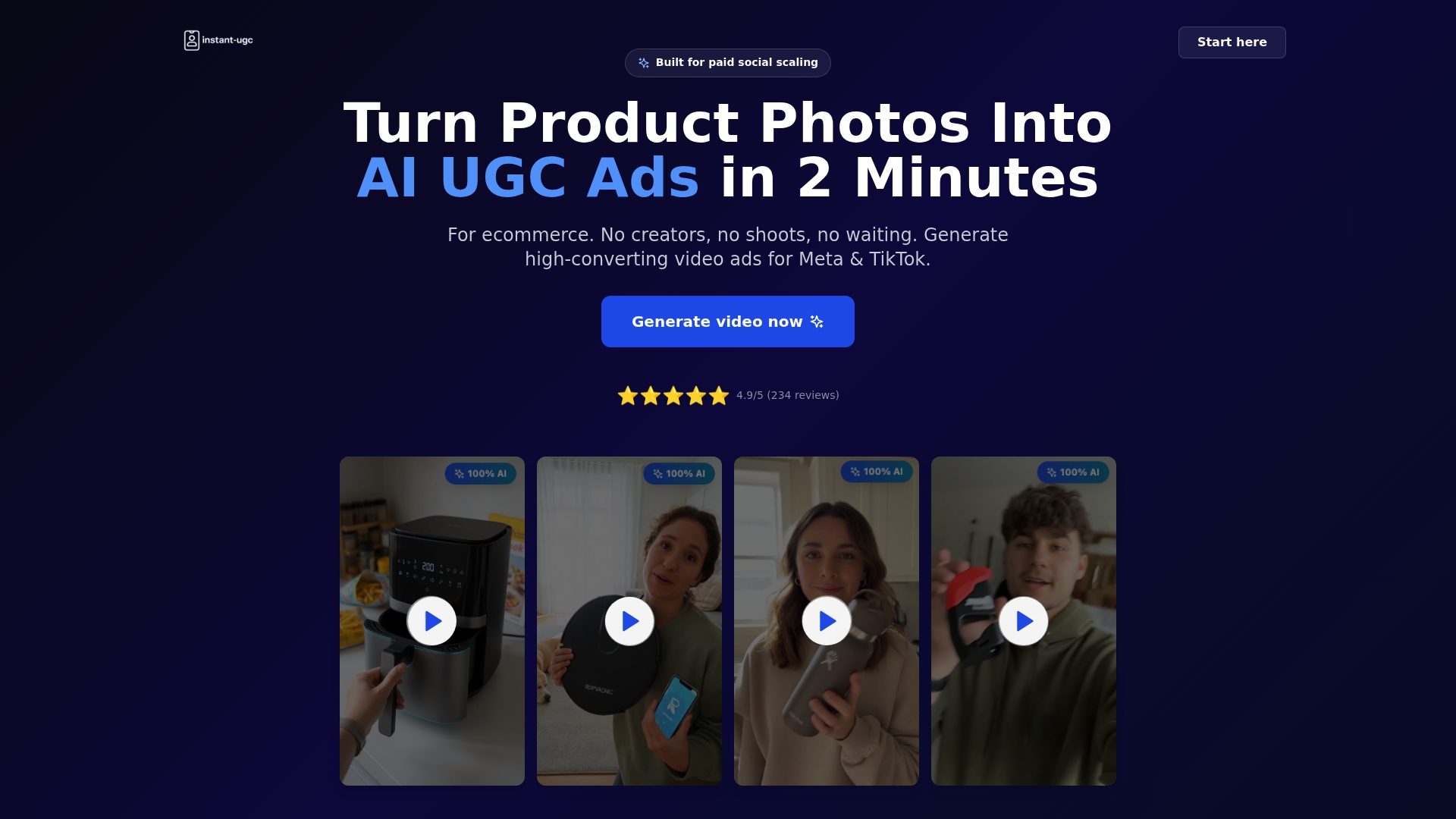
That speed is what lets you run the three-variant, seven-day test above without blowing a production budget on a single concept. Need the same demo in a different language for a new market, or a second version testing a different hook? Generate it the same afternoon rather than rebooking a shoot. If your team is producing videos for App campaigns across Meta, TikTok, and the App Store simultaneously, the multilingual video ad workflow covers that localization without multiplying your production timeline. Start with your next asset group and see how many variants you can get into testing this week instead of next month.
Where to Verify These Video Specs and Guidelines
- Google Ads App campaign setup guide: official upload limits, formats, and asset requirements.
- Google’s creative best practices for App campaigns: the source for hook timing and UI-first creative direction.
- How App campaigns serve across Google’s networks: placement breakdown and the auto-generation fallback.
- ePPC’s guide to scaling UAC with video: field data on portrait conversion lift and length variety.
Sources
- Best practices guide: Setting up your App campaigns - Google Ads Help
- Make better creative assets for App campaigns - Google Ads Help
- How App campaigns serve ads across Google networks - Google Ads Help
- How to Scale Google App Campaigns (UAC) with Video Creatives – ePPC
