
App Screenshot Videos: From Store Specs to Ads in Minutes
Create app screenshot videos for App Store and Google Play, then adapt them for social ads with quick capture tips and workflows that can finish in minutes.
You can turn app screenshots or a short screen recording into a store-ready 15 to 30 second app preview by capturing key flows, adding concise on-screen copy, and exporting to platform specs. App Store previews run 15 to 30 seconds, while Google Play previews autoplay muted ahead of screenshots. Automated tools like Instant-UGC can produce a finished video in minutes instead of hours.
TL;DR:
- Capture six to twelve screenshots or a 10 to 30 second recording of two or three main flows, using short clips when gestures or transitions matter.
- Because previews often autoplay without sound, put the main benefit early, burn readable captions into the video, and test the full cut muted before upload.
- Localized versions need more than translated captions: German and Finnish text can run 20% to 30% longer, and screens need local currencies, dates, and units.
Table of Contents
- What App Screenshot Videos Are and When to Use Them
- How to Capture Source Material: Screenshots, Recordings, and Native Tools
- Workflows to Turn Screenshots Into a Finished Video
- App Store and Google Play Preview Requirements
- Best Practices for Autoplay-Muted Previews
- Quick Step-by-Step Workflow for a 20 to 30 Second Preview
- Scriptwriting and Storytelling for App Screenshot Videos
- Customizing and Localizing Videos for Different Markets
- Choosing Music, Voiceover, and Captions
- Optimizing Length and Format Beyond the App Stores
- Metrics and KPIs to Track App Screenshot Video Performance
- Why Teams Are Shifting to Automated Workflows for Scale
- Instant-UGC: Turn App Screenshots Into Store-Ready Videos Fast
- FAQ
- Sources
What App Screenshot Videos Are and When to Use Them
An app screenshot video turns static screens or a short screen capture into a moving sequence that shows off what your app actually does. We see several uses, each with its own length and shape.
- Store previews: the video that appears on your App Store or Google Play listing, typically 15 to 30 seconds, portrait or landscape depending on your app’s orientation.
- Promotional or ad videos: shorter clips built for Meta, TikTok, or display placements, usually in 9:16 or 1:1 format and often under 15 seconds.
- Tutorial or onboarding clips: longer internal or support videos that walk through a feature in more depth, with less pressure on runtime.
Static screenshots work well when your flow is linear, think a checkout sequence or a settings menu. A short screen recording captures what screenshots cannot: swipes, animations, and transitions that show the app feels responsive.
How to Capture Source Material: Screenshots, Recordings, and Native Tools
Before you edit anything, you need clean footage. The good news is that both major platforms include capture tools you already have.
- Android 11 and later ships a built-in screen recorder in the Quick Settings panel, and recordings save directly to your Gallery or Photos app.
- macOS gives you two native options: the Screenshot app (Shift-Command-5) for quick captures, or QuickTime Player for longer recordings, both exporting to .mov files.
- Android Studio’s emulator can also record directly to MP4, WEBM, or GIF, which is handy if you’re capturing from a development build rather than a physical device.
Choose screenshots when your app’s value is clear from static UI, and switch to a recording the moment gestures, loading states, or animated transitions are part of the story you want to tell.
Pro Tip: Record in short 10 to 15 second bursts for each flow rather than one long take. It’s easier to trim and reorder clean clips than to cut a single marathon recording.
Workflows to Turn Screenshots Into a Finished Video
Once you have your source material, you’ll choose between three practical paths, and the right one depends on how much time you have and how many versions you need.
- Manual timeline editors: desktop or mobile editors give you full control over pacing, transitions, and text placement, but they take the longest and reward design skill.
- Template-based editors: pre-built templates speed up assembly for a single promo or one-off social post, trading some flexibility for consistent pacing.
- Automated AI generators: these build UGC-style videos directly from your screenshots or app assets, which makes them the fastest route when you need several variants, multiple languages, or rapid testing cycles.
Solo developers often do fine with a template editor for a single store preview. Marketers running paid campaigns tend to outgrow manual editing quickly once they need multiple ad variants for testing. Agencies managing multiple client apps usually lean on automated generators because the volume makes manual editing impractical, and because localization across markets multiplies the workload fast.
App Store and Google Play Preview Requirements
Each store has its own rules, and missing them means a rejected upload or a preview that never shows up where you expect.
App Store app previews must run between 15 and 30 seconds, in .mov, .m4v, or .mp4 format using H.264 encoding, with ProRes available for higher-quality masters. Apple requires a poster frame, a still image representing the video before playback starts, and orientation must match your app’s supported layout.
Google Play handles previews differently: the video appears before your screenshots in the listing and may autoplay muted for up to 30 seconds depending on where a user sees it. Play accepts a YouTube URL as the source for your preview asset.
- Apple: 15 to 30 seconds, H.264 .mov/.m4v/.mp4, poster frame required.
- Google Play: appears before screenshots, muted autoplay, YouTube URL typically required.
- Mismatched specs are the most common reason a preview gets rejected or buried in search results.
Best Practices for Autoplay-Muted Previews
Most viewers will see your preview with the sound off, which changes how you need to design it. Apple’s own guidance notes that previews often autoplay muted, so on-screen copy has to carry the message alone.
- Keep text large, high-contrast, and on screen long enough to read twice, not just glanced at.
- Put your main value proposition near the beginning, since that’s often all the attention you get before a viewer scrolls past.
- Keep each scene short with one clear focal point rather than cramming multiple features into a single shot.
- Choose a poster frame that communicates the app’s core benefit in a single image, since it’s what people see before they decide to tap play.
Pro Tip: Watch your finished preview with the sound off before you upload it. If you can’t follow the story without audio, a first-time viewer definitely can’t either.
Quick Step-by-Step Workflow for a 20 to 30 Second Preview
Here’s the compact version, the steps we’d follow if we needed a store-ready preview by the end of the day.
- Set your target specs first: decide which platform you’re uploading to, the required aspect ratio, and your target length before you capture anything.
- Capture six to twelve screenshots or one 10 to 30 second recording that covers your app’s two or three main flows, not every feature.
- Assemble scenes in order, add short on-screen copy to each one, and limit yourself to a few visual transitions so the pacing stays tight.
- Export to your platform’s required format, set your poster frame, and watch the whole thing muted once before you upload.
Skipping the muted playback check is the most common mistake we see, since a video that makes perfect sense to its creator often confuses a first-time viewer.
Scriptwriting and Storytelling for App Screenshot Videos
A good app preview script is built backward from the viewer’s attention span, not forward from your feature list. Start with the single outcome your app delivers, not the mechanics of how it works. “Track your spending automatically” lands faster than a walkthrough of every menu option.
Structure each scene around one idea: problem, action, result. Show a frustration or a gap (a cluttered inbox, a missed reminder), then show your app solving it in two or three taps, then show the payoff screen. This problem-action-result rhythm keeps a muted, text-driven video coherent without needing a narrator.

Write your on-screen copy like headlines, not sentences. “Set it once. Never miss a payment.” reads faster than a full paragraph explaining the same feature. Keep each line brief where possible, since viewers are often reading while the scene is already moving.
Save your strongest moment, the feature that makes people want to download, for the middle of the video rather than the end. Attention drops steadily through a short clip, so burying your best hook at the final second means fewer people see it. Close with a simple, clear call to action: a name, a tagline, or a single line that tells the viewer what to do next.
Customizing and Localizing Videos for Different Markets
Translating on-screen text is the easy part. The harder work is making sure the pacing still fits once your copy changes length. German and Finnish text often runs 20 to 30% longer than English for the same meaning, so a scene timed tightly around an English phrase may need extra seconds once localized.
Currency, date formats, and measurement units shown inside your app’s screens need their own regional versions, not just translated captions layered on top. A screenshot showing prices in US dollars reads oddly to a shopper in a market that uses a different currency entirely.
Cultural fit matters beyond language. Color associations, gesture conventions, and even the pace viewers expect from an ad vary by region, so a video that feels energetic in one market can feel rushed in another. Rebuilding scene timing and copy for each region, rather than simply swapping subtitles, is what separates a localized video from a translated one.
Automated generation workflows make this far more practical at scale, since producing multiple language variants by hand multiplies your editing time, while a templated or AI-driven process can apply the same structure across languages without rebuilding each video from scratch.
Choosing Music, Voiceover, and Captions
Since most app previews autoplay muted, captions are not optional, they’re the primary way most viewers will understand your video at all. Burn text directly into the video rather than relying on a platform’s auto-generated captions, which can misread app-specific terms or brand names.
When you do add sound, whether background music or voiceover, treat it as a bonus layer for viewers who tap to unmute, not the backbone of your story. Choose music that matches your app’s pace: a fast, punchy track suits a productivity app’s quick-tap demo, while a calmer track fits a wellness or finance app showing a slower, considered flow.
Voiceover works best for tutorial-style or longer-format videos where you have room to explain a feature in more depth. For a 15 to 30 second store preview, voiceover often competes with on-screen copy for attention, so many successful previews skip it entirely and rely on text alone.
Keep caption timing generous. A line that disappears the instant a viewer finishes reading it feels rushed; give text slightly longer on screen than feels necessary when you’re the one who already knows what it says.

Optimizing Length and Format Beyond the App Stores
Store specs are only one target. The same source footage often needs to become several different videos once you count social ads, your website, and email campaigns.
Social platforms generally reward shorter cuts than store previews: a 6 to 15 second version for a Meta ad campaign or TikTok ad usually outperforms a full 30 second store preview repurposed without edits. Square (1:1) and vertical (9:16) formats dominate mobile feeds, while a website hero video has more room to breathe since visitors arrive with more intent to learn.
Rather than building each version from scratch, cut your longest master video down for each channel: keep the strongest moments for social ads, the full sequence for your store listing, and a mid-length version with added context for your website or landing page. Each platform’s native format and attention pattern should drive the edit, not the other way around.
Metrics and KPIs to Track App Screenshot Video Performance
Once your video is live, a handful of metrics tell you whether it’s actually working. View-through rate, how many viewers watch to completion versus dropping off early, flags whether your pacing or hook needs work. A steep drop early in the video usually points to a weak opening scene.
Store listing conversion rate, the share of visitors who install after viewing your page, is the metric that matters most for App Store and Google Play previews specifically, since that’s the action the video exists to drive. For ad placements, click-through rate and cost per install tell you whether the creative is earning its media spend.
Comparing multiple variants side by side, different hooks, different pacing, different on-screen copy, is how most teams improve results over time rather than guessing at a single “best” version.
Why Teams Are Shifting to Automated Workflows for Scale
We think the honest case for automation isn’t that it looks as polished as a hand-built edit, it often doesn’t need to. What it buys you is speed: testing multiple hooks instead of one, and localizing into several languages without multiplying your editing hours.
Our advice: reserve manual, hand-crafted edits for your single hero asset, the one video that represents your brand everywhere. Use automated or templated workflows for every variant after that. If you need dozens of versions or several languages, automation usually pays for itself quickly.
— Syno
Instant-UGC: Turn App Screenshots Into Store-Ready Videos Fast
When the goal is volume rather than a single polished hero video, we built Instant-UGC to close that gap. Our platform turns app screenshots and assets into UGC-style videos, with automatic script generation and customizable AI avatars to give each version a genuine testimonial feel.
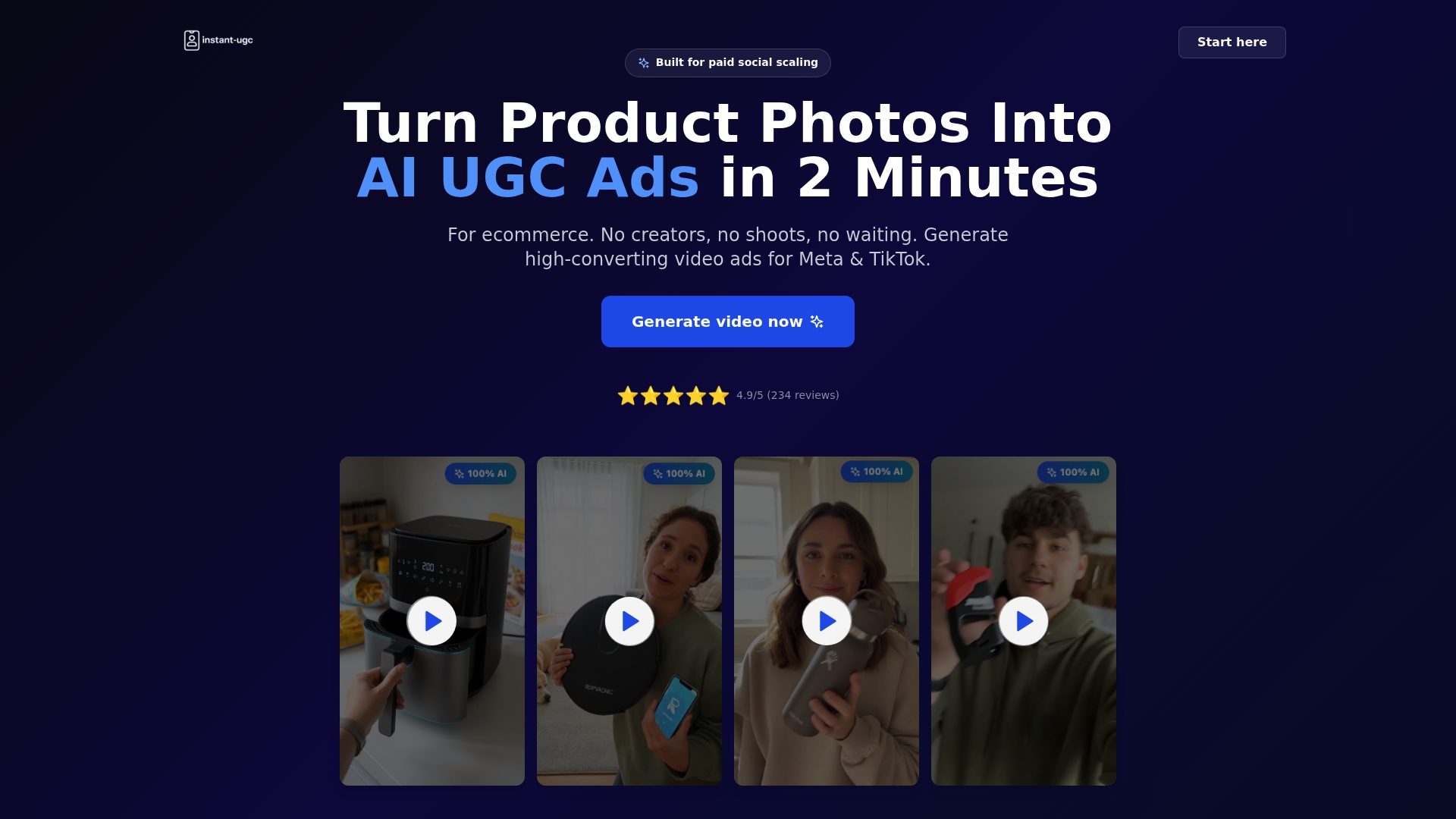
- Generate finished videos without waiting on a manual edit.
- Choose from supported languages, so localizing for a new market doesn’t mean rebuilding a video from scratch.
- Export in 9:16 format, suited to both app store previews and social ad placements.
For teams testing several hooks or launching in multiple regions at once, this means more variants without more hours. A single generated video starts at 9 dollars, or you can run ongoing production through the Starter plan at 19 dollars a month, the Growth plan at 39 dollars a month, or the Pro plan at 99 dollars a month for higher-volume needs. If you’d like to see how it fits your own screenshots, visit Instant-UGC and try a sample video.
FAQ
How do I screenshot videos on my phone?
On Android 11 and later, open Quick Settings and tap the built-in screen recorder to capture video directly, no extra app needed. On an iPhone, use the Control Center’s Screen Recording button, and the clip saves automatically to your Photos app once you stop recording.
How do I secretly record my screen?
Screen recording always triggers a visible indicator on both Android and iOS, by design, so there is no hidden or secret recording mode on either platform. This is a deliberate privacy safeguard, and any app claiming to bypass it should be treated with caution.
Where do screen captures go?
On Android, recordings and screenshots save to your device’s Gallery or Photos app automatically. On a Mac, Screenshot app and QuickTime recordings save as .mov files to your chosen folder, often the desktop by default.
What is the best screen recorder app for Android?
Android’s built-in screen recorder, available since Android 11, covers most app preview and demo needs without installing anything extra. For more editing features, dedicated capture apps reviewed in recent roundups offer added options like webcam overlay or annotation.
How long should an app preview video be?
App Store previews must run between 15 and 30 seconds, while Google Play previews can autoplay muted for up to roughly 30 seconds depending on where a user encounters them. Social ad versions are often cut shorter, sometimes 6 to 15 seconds, to match platform attention patterns.
Sources
- Support
- App preview specifications - App information - Reference - App Store Connect - Help - Apple Developer
- Add preview assets to showcase your app - Play Console Help
